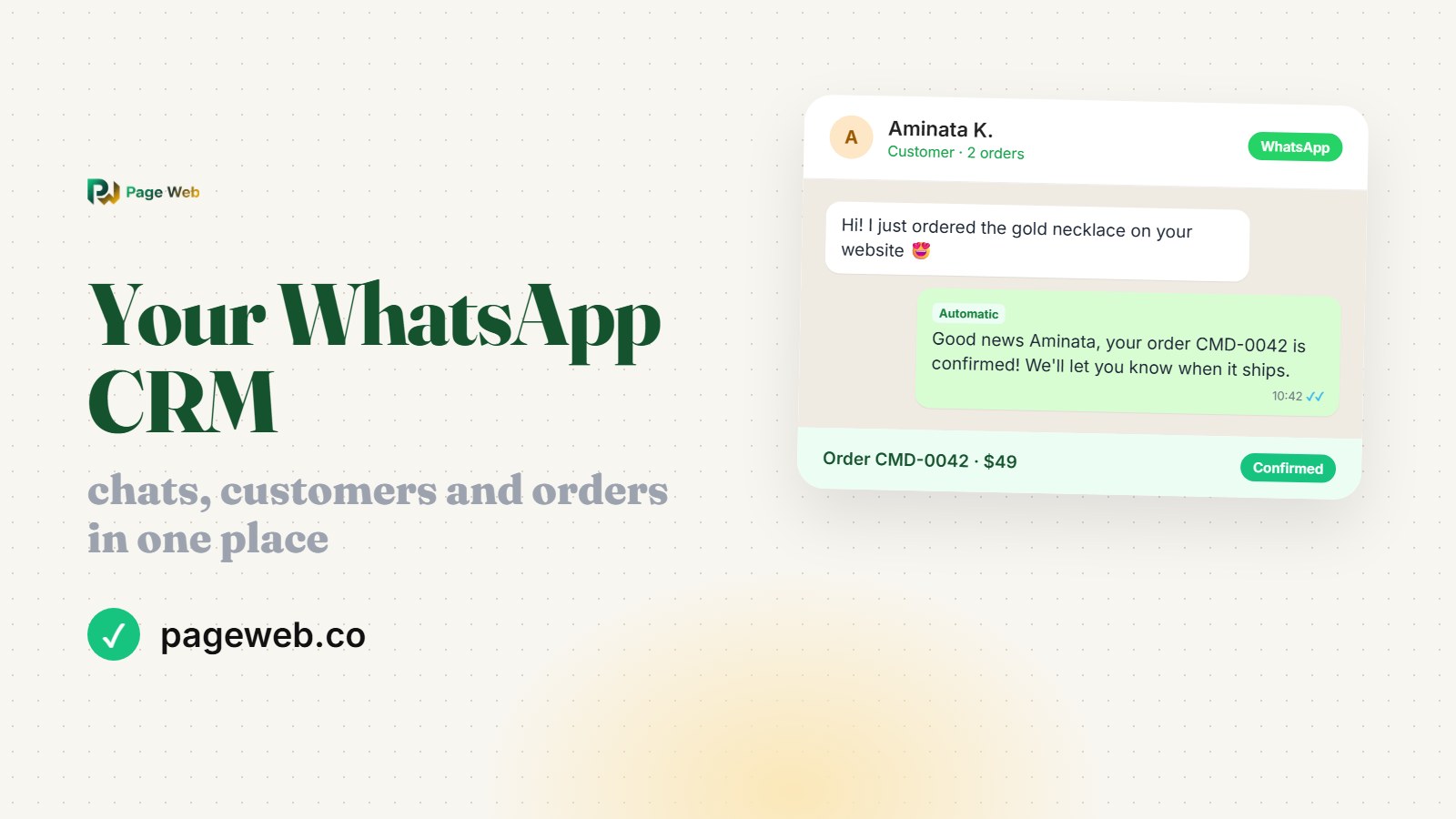
Short answer: PageWeb's WhatsApp CRM connects your WhatsApp Business number to your PageWeb dashboard, so your chats, your customers and your orders finally live in one place. You connect your number through Meta's official window, you keep using WhatsApp on your phone, and from your computer you can answer faster, see each customer's orders next to the chat, send automatic order confirmations from your own number, and follow your results. It is built on the official WhatsApp Business Platform, not on a risky workaround.
Your customers already chose WhatsApp. The goal is not to move them somewhere else: it is to stop losing their messages and their orders.
📺 Prefer to watch? See the full tutorial on YouTube: Your WhatsApp CRM, step by step (6 minutes), or follow the step-by-step guide with screenshots.
The problem: WhatsApp on one phone doesn't scale
For most small businesses in Africa and beyond, WhatsApp is the shop counter. Customers ask for prices, send photos, place orders and ask "has it shipped?". On a single phone, that quickly becomes a mess:
- messages get buried and some customers never get an answer,
- orders are noted on paper, or forgotten,
- the same questions (price, delivery, opening hours) come back all day,
- you can't see who already bought from you, or what they ordered,
- your chats live on one side and your orders and invoices on the other.
A WhatsApp CRM solves this by putting your WhatsApp conversations inside the tool where your products, orders and customers already are.
Key facts
- What it is: a WhatsApp inbox inside the PageWeb CRM, linked to your customers, orders, bookings and invoices.
- How you connect: through Meta's official window (WhatsApp Business Platform). No unofficial app, no QR-code hack that can get your number banned.
- Your phone keeps working: you keep using the WhatsApp Business app on your phone; messages show in both places.
- Automatic messages: order received, delivered, booking reminder, payment, unpaid invoice, review request... sent by your shop, from your number.
- AI help: "Suggest a reply" writes a draft you check before sending, and an optional AI assistant can answer when you're closed or busy.
- Promotions: only to customers who agreed to receive them, and they can reply STOP at any time.
- Price: replying to WhatsApp from the PageWeb CRM is part of PageWeb Pro (from $4.99 per month). Meta may charge for some messages, billed directly to your WhatsApp account, not by PageWeb.
How it works, step by step
1. Connect your WhatsApp Business number
In the CRM, open WhatsApp and click Connect my WhatsApp Business app. Meta's official window opens: sign in with the account that manages your business, choose your number, check your business portfolio and your business name, and confirm. Meta shows you exactly what you share. Add a payment method with Meta for the messages it charges (without one, you can't write to customers first). That's it: you keep WhatsApp on your phone, and your chats arrive in PageWeb.
2. Work from one inbox
All your chats arrive in one place. Search by name, number or message, and use filters to see unread chats, replies to send, and your customers. When you're done with a chat, click Done: it comes back when the customer writes again. Use Note to leave private notes for your team; the customer never sees them.
WhatsApp has one important rule: you can reply freely for 24 hours after the customer's last message. After that, your shop can only send a message template approved by WhatsApp. PageWeb shows you which situation you're in.
3. Know who you're talking to
Next to each chat, the customer card shows their orders, bookings and invoices, and whether they accept your offers. From the chat you can send a product (with its price and a link to your site) or create an order with the name and number already filled in. Asked for an invoice? Create it from the order and click Send: the customer gets a link to view and download it.
4. Answer faster
- Suggest a reply: a draft is written from the conversation and your shop's information. Nothing is sent until you check it and click send.
- Quick replies: save your common answers with a short name, then type / in the reply box to pick one.
- Photos and documents: attach them directly from your computer.
5. Turn on automatic messages
Click Automatic and choose which events your shop should tell customers about: order received, order delivered, booking confirmed with a reminder the day before, tickets, payments, unpaid invoices, review requests. WhatsApp approves each message first; when it says Ready, it can be sent. When a customer orders on your website, the confirmation leaves by itself, from your number, and shows in the chat marked Automatic, with ticks for delivered and read.
Built-in limits protect your customers and your number: at most four automatic messages per customer per day, and reminders only in the daytime. The Activity list shows everything that was sent.
6. Choose when the AI assistant answers
The AI assistant can answer for your shop: off, when the shop is closed, if nobody has answered, or always. It follows strict rules: it stops for 12 hours in a chat as soon as you write there, it doesn't invent prices or stock, it doesn't agree to discounts or refunds, and its answers are labelled as AI.
7. Use message templates and promotions
To write first, or after the 24-hour window, use a template: choose a ready-made message, adjust it, check the preview and the estimated price, and send it to WhatsApp for approval. For promotions, PageWeb only lets you send to customers who agreed (at checkout, in their account, or when you note it in their chat), at most one promotion a day, and customers can reply STOP at any time. That keeps your number in good standing with WhatsApp.
8. Follow your results
In the CRM analytics, see who wrote to you, how fast you answer, who is still waiting for a reply, and the orders that came from WhatsApp.
Why PageWeb's WhatsApp CRM is different
| WhatsApp Business app alone | Separate WhatsApp inbox tools | PageWeb WhatsApp CRM | |
|---|---|---|---|
| Customer's orders, bookings, invoices next to the chat | No | Only if you connect your shop to it | Yes, it's the same account |
| Order confirmation sent when someone buys on your site | No | Needs an integration | Automatic |
| Create an order or send an invoice from the chat | No | Rarely | Yes |
| AI reply drafts and AI assistant with safety rules | No | Sometimes, extra cost | Included with Pro |
| Website, shop, CRM and WhatsApp in one subscription | No | No | Yes |
The key difference: other tools give you a WhatsApp inbox and leave you to connect it to your shop. On PageWeb, your website, catalog, orders, customers, invoices and WhatsApp are the same system, so everything is linked from day one, with no integration to set up and no extra tool to pay for.
Tips to get the most out of it
- Turn on the order confirmation first. It is the message customers value most, and it reduces "did you get my order?" questions.
- Write your 5 most common answers as quick replies: price list, delivery areas, payment methods, opening hours, return policy.
- Start the AI assistant on "when the shop is closed", then widen it once you trust its answers.
- Ask for consent at checkout so your promotion list grows by itself.
- Check your analytics weekly to spot customers still waiting for a reply.
Selling mostly on WhatsApp? Read our guide How to sell on WhatsApp to turn your chats into a real online store.
Frequently asked questions
What is a WhatsApp CRM?
A WhatsApp CRM is a tool that brings your WhatsApp conversations together with your customer information, so you can answer from one inbox and see each customer's history, orders and invoices. PageWeb's WhatsApp CRM is built into your PageWeb dashboard, next to your website and shop.
Can I keep using WhatsApp on my phone?
Yes. You connect your WhatsApp Business app number and keep using the app on your phone. Messages appear both on your phone and in PageWeb.
Is it safe? Can my number get banned?
PageWeb uses the official WhatsApp Business Platform from Meta and the official connection window, not an unofficial app. Promotions only go to customers who agreed, with a daily limit, and automatic messages have built-in limits, which helps keep your number in good standing.
How much does it cost?
Replying to WhatsApp from the PageWeb CRM is part of PageWeb Pro, from $4.99 per month. Meta may charge for some messages (for example templates and promotions); those are billed by Meta directly to your WhatsApp account. The template screen shows an estimated price before you send.
What is the WhatsApp 24-hour window?
WhatsApp lets a business reply freely for 24 hours after the customer's last message. After that, the business can only send a message template approved by WhatsApp. PageWeb tells you when the window is closed and lets you pick an approved template.
Does PageWeb read my customers' messages?
Your chats are shown in your own PageWeb account so you can read and answer them. Automatic messages and AI replies are sent by your shop, from your number, in your shop's name.
Can the AI assistant make promises to my customers?
No. It does not invent prices or stock, does not agree to discounts or refunds, labels its answers as AI, and stops for 12 hours in a chat once you write there. You choose when it is allowed to answer, or keep it off.
Can I send promotions to all my contacts?
Only to customers who agreed to receive offers: at checkout, in their account, or when you note it in their chat. They can reply STOP at any time, and you can send at most one promotion a day. You also need a marketing template approved by WhatsApp.
Which messages can be sent automatically?
Order received and delivered, booking confirmations and a reminder the day before, tickets, payments, unpaid invoices and review requests. WhatsApp approves each message once; then your shop sends it by itself when the event happens.
Your turn
Open your PageWeb dashboard, go to CRM → WhatsApp and connect your number. Watch the 6-minute tutorial first if you want to see every screen.